Learn how NOVA AI detects Spanish conversations, creates Spanish call transcripts and summaries, and lets you review them in Call History or Reports.
Overview
NOVA AI supports Spanish call transcription and summaries within Lightspeed Voice. When a conversation is in Spanish, NOVA detects the language and creates a written transcript in Spanish. It can also generate a Spanish summary with the key takeaways from the conversation.
How Spanish Transcription Works
NOVA recognizes Spanish speech automatically and transcribes the conversation directly in Spanish. The transcript follows the language spoken during the call, and the Spanish summary provides a shorter overview of what was discussed.
Your team can use the transcript to revisit customer questions, requests, and other details, then review the summary to prepare for follow-up.
Before You Begin
NOVA and call transcription must be enabled for the appropriate user. See How does NOVA AI work? for instructions on activating users, enabling default transcription, and reviewing transcript status.
Find a Spanish Transcript and Summary
Open Call History in the expanded Switchboard, or find the call in Reports.
Look for the T icon. Blue indicates that the transcript is ready; orange indicates that the call is still processing.
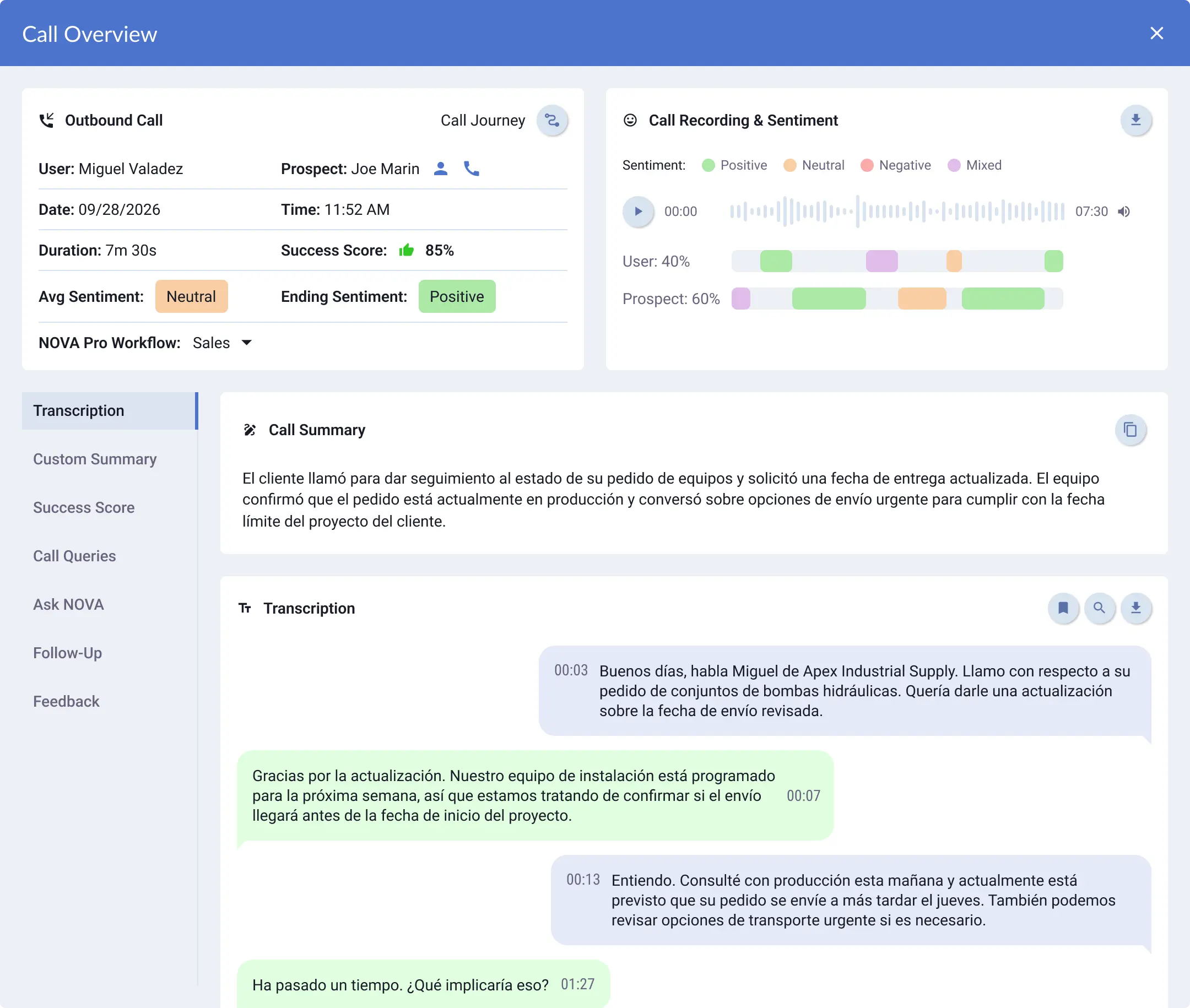
Open the call to review its Transcription and Call Summary.
For a conversation conducted in Spanish, review the Spanish transcript and summary to confirm the details and key takeaways.
Example
A Spanish call summary and transcript displayed together in NOVA AI.
Frequently Asked Questions
Can NOVA transcribe calls in Spanish?
Yes. NOVA AI detects Spanish speech and creates a written transcript in Spanish.
Does NOVA also create Spanish call summaries?
Yes. NOVA can generate a Spanish summary of a Spanish conversation alongside the transcript.
How is the transcription language determined?
NOVA automatically recognizes Spanish speech and writes the transcript directly in Spanish.
Need Help?
If a transcript is missing, confirm that transcription was enabled for the call and the user is active in NOVA's Transcription Settings. If the T icon is orange, check again after processing completes. For additional assistance, email help@lightspeedvoice.com or see Getting Support.
Last Updated:
November 10, 2026
Heading 1
Heading 2
Heading 3
Heading 4
Heading 5
Heading 6
Lorem ipsum dolor sit amet, consectetur adipiscing elit, sed do eiusmod tempor incididunt ut labore et dolore magna aliqua. Ut enim ad minim veniam, quis nostrud exercitation ullamco laboris nisi ut aliquip ex ea commodo consequat. Duis aute irure dolor in reprehenderit in voluptate velit esse cillum dolore eu fugiat nulla pariatur.
Lorem ipsum dolor sit amet, consectetur adipiscing elit. Suspendisse varius enim in eros elementum tristique. Duis cursus, mi quis viverra ornare, eros dolor interdum nulla, ut commodo diam libero vitae erat. Aenean faucibus nibh et justo cursus id rutrum lorem imperdiet. Nunc ut sem vitae risus tristique posuere.
Lorem ipsum dolor sit amet, consectetur adipiscing elit. Suspendisse varius enim in eros elementum tristique. Duis cursus, mi quis viverra ornare, eros dolor interdum nulla, ut commodo diam libero vitae erat. Aenean faucibus nibh et justo cursus id rutrum lorem imperdiet. Nunc ut sem vitae risus tristique posuere.
Life is about to get way better...
We'll be in touch soon!
Oops! Something went wrong while submitting the form.
Life is about to get way better...
We'll be in touch soon!
Oops! Something went wrong while submitting the form.
Our site is best viewed in the latest version of Chrome, Firefox, or Edge.