

Bring Customer Calls into Your Acumatica Workflow
Open matching customer records, log call details and recording links, and add NOVA summaries and sentiment to your Acumatica workflow.
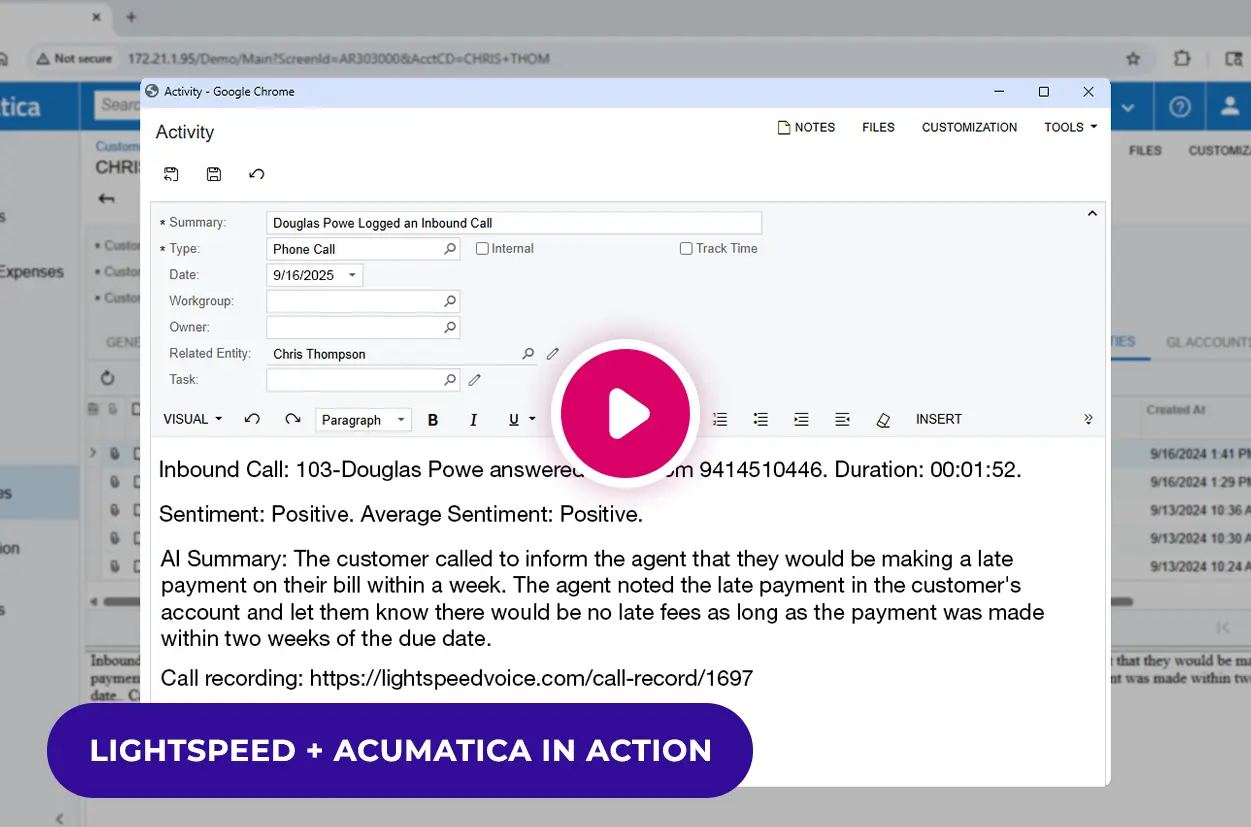
- Open matched Acumatica records when calls are answered
- Keep call details and recording links with the client
- Add NOVA summaries and sentiment after processing

Available in the Acumatica Marketplace
Included with eligible Lightspeed Voice plans
How the Acumatica Phone Integration Works
NOVA AI + Acumatica
Bring Call Details into Acumatica Customer Records
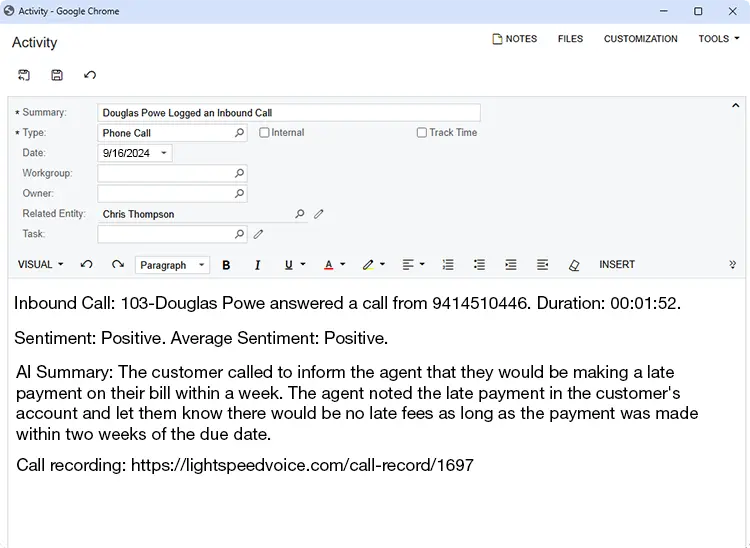
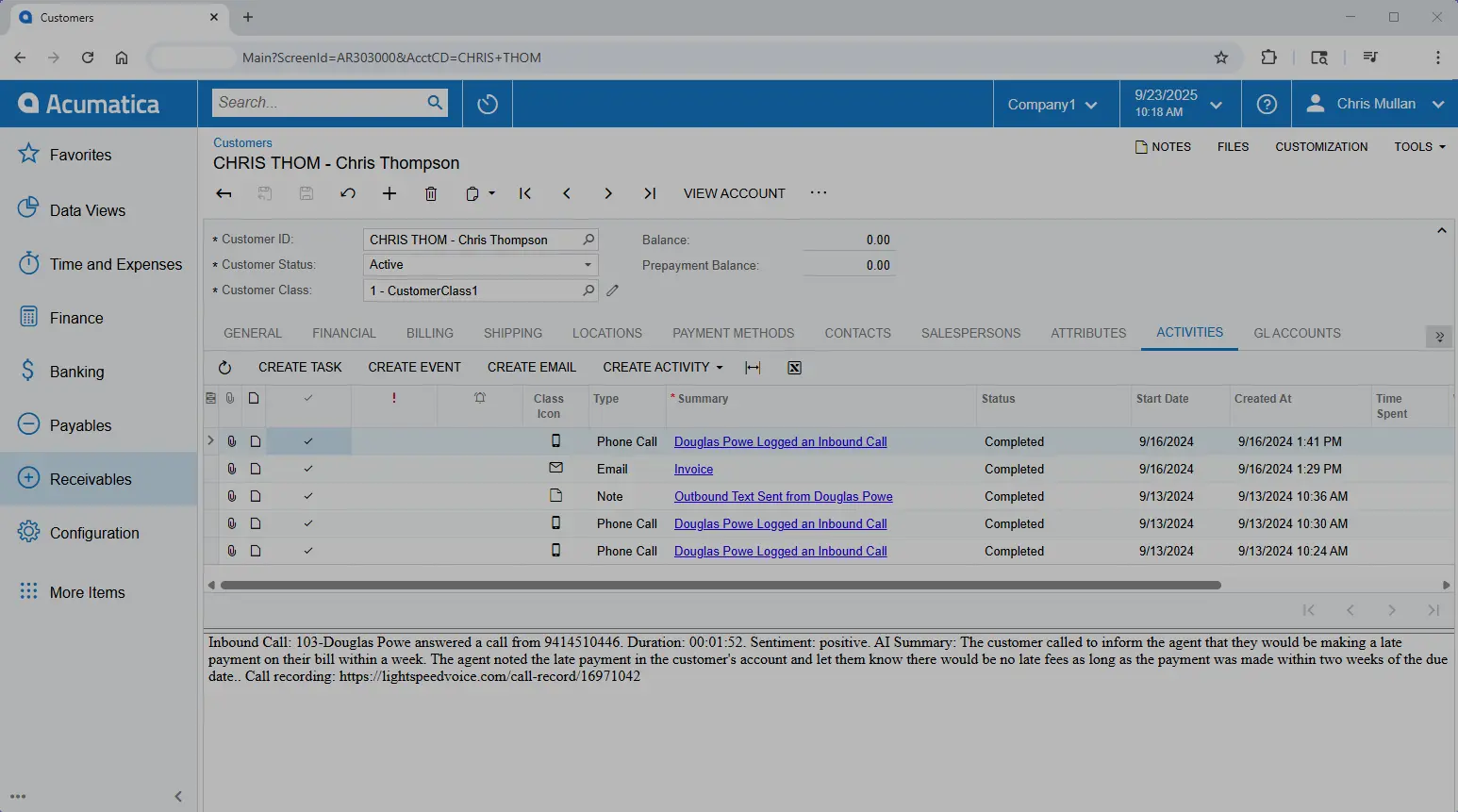
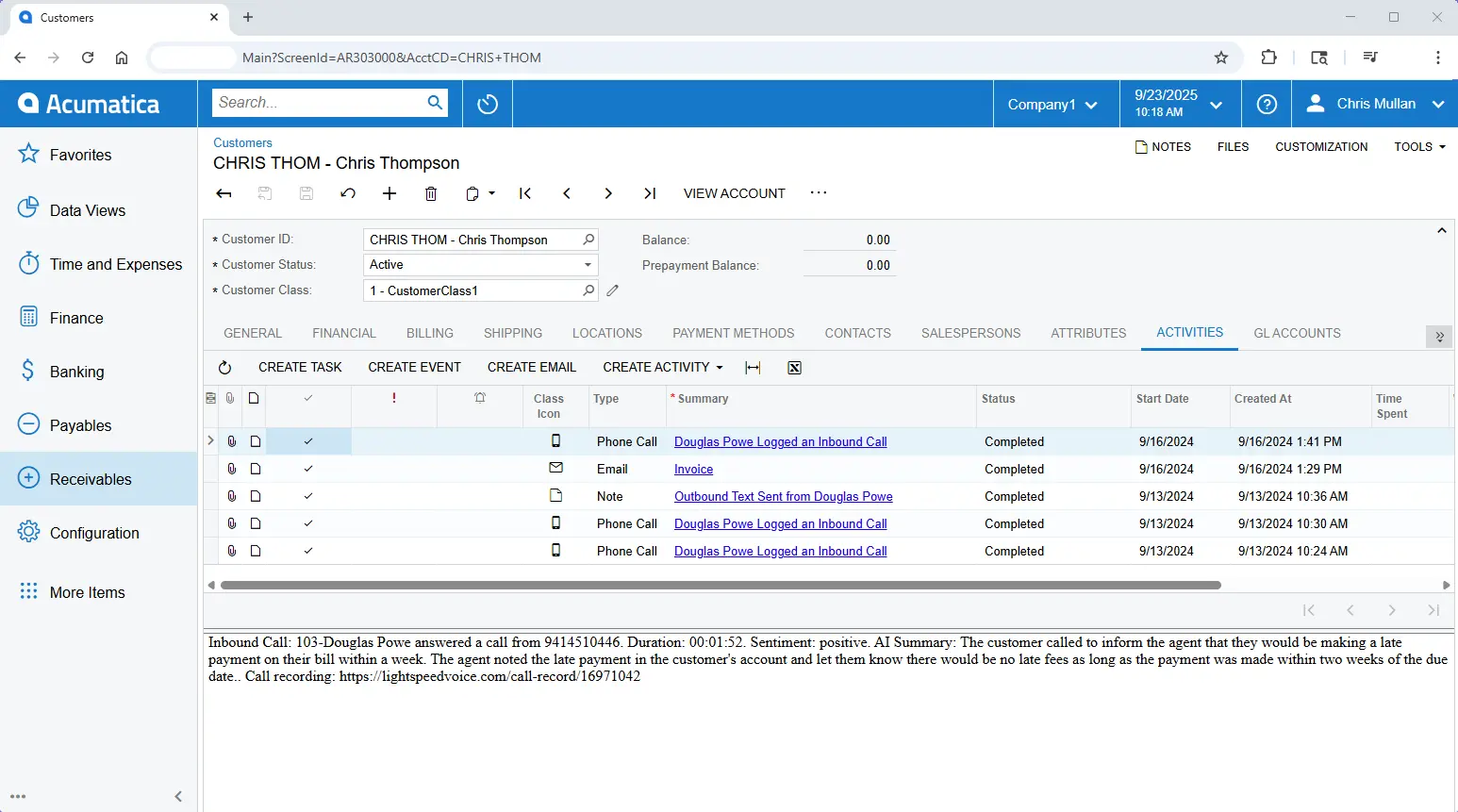
- Sync call details to the matched Acumatica record with the relevant triggers configured.
- Add NOVA summaries and sentiment after processing completes.
- Open recording links according to Lightspeed Voice user permissions.

Acumatica integration at a glance
See how client calls and communication history connect.
Capability | Availability | How it works |
|---|---|---|
Client record call pops | ✓ Supported | Open the matched Acumatica record when a call is answered. |
Automatic call notes | ✓ Supported | Sync call details to the matched Acumatica record with the relevant triggers configured. |
Recording links | ✓ Supported | Keep a permission-controlled recording link with the call details. |
AI summaries & sentiment | ✧ Requires NOVA | Add summaries and sentiment after post-call processing completes. |
Text message activity | ✓ Supported | Sync sent and received Lightspeed Voice Messenger messages. |
Email activity | ✓ Supported | Keep supported sent and received email activity with the client. |
Fax activity | ✓ Supported | Log supported sent and received fax activity with the customer. |
Recording access follows user permissions. NOVA insights sync after processing.
Trusted by Acumatica users nationwide
"Lightspeed Voice offers the best customer/partner experience of any Acumatica ISV we work with."


Lightspeed Voice is a company dedicated to the success of their customers and has been a superb partner to MaxQ.


Explore NOVA and NOVA Pro
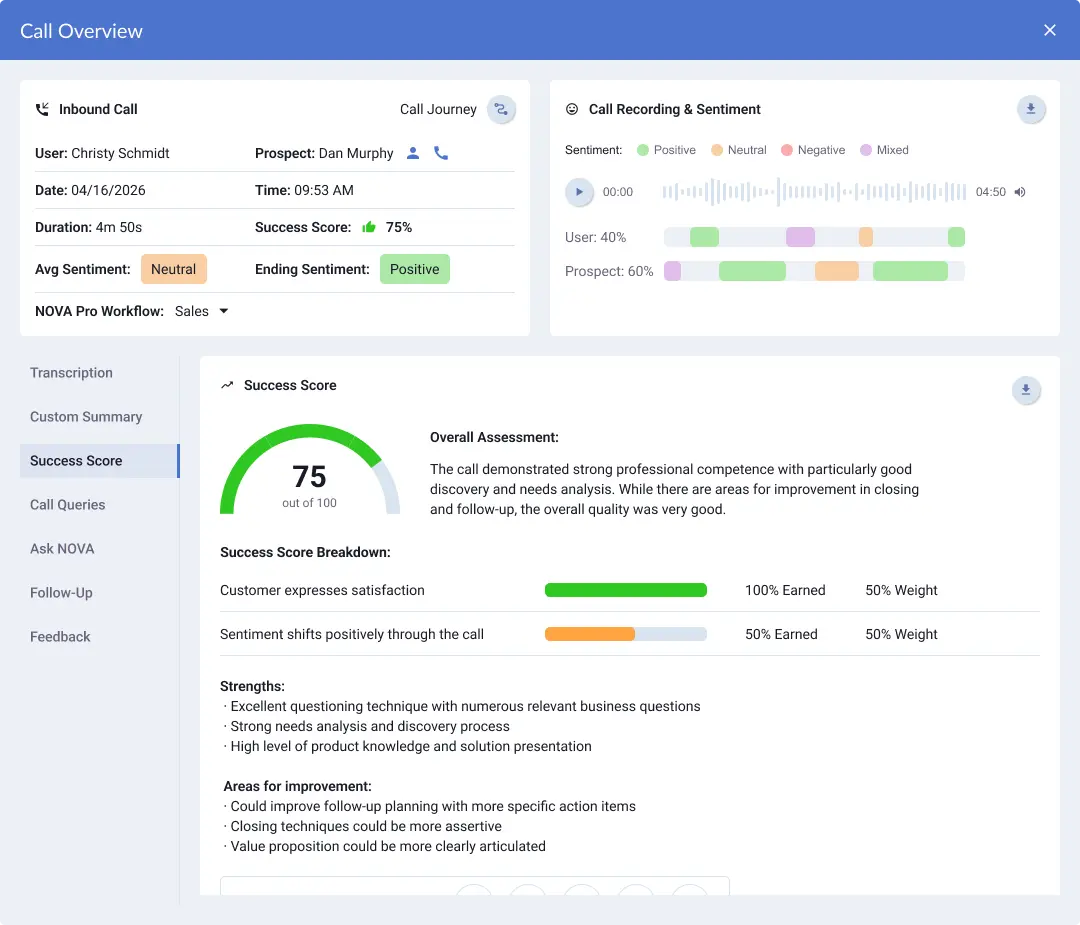
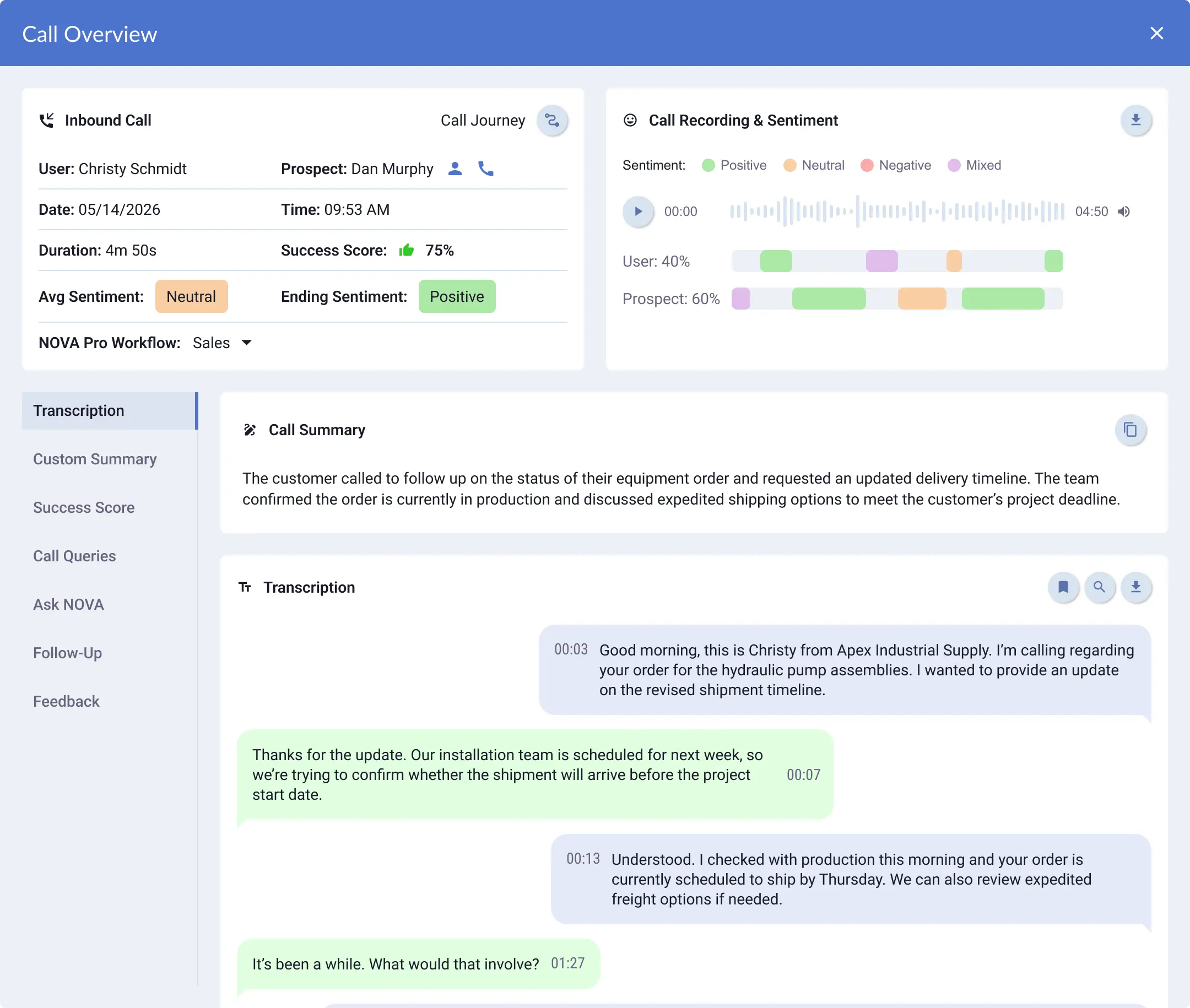
Review calls in Lightspeed Voice with NOVA and NOVA Pro. NOVA summaries and sentiment sync to Acumatica after processing.


Get connected to Acumatica
Our team helps you configure the connection and get started.
Create a Connected Application
An Acumatica admin creates a Connected Application with Authorization Code flow, a shared secret, and the required redirect URL.
Connect your users
Create the Acumatica integration in Lightspeed Voice, assign users, and authenticate with the Client ID and shared secret.
Choose your settings
Choose call-pop behavior and enable call logging and the communication and NOVA triggers your team needs.
Ready to set up your integration?
Follow our Acumatica integration setup guide.
Why Businesses Choose Lightspeed Voice

#1 Rated Phone Service

Award-Winning NOVA AI

98% Customer Satisfaction

4.9 Star Google Rating
FAQs
Lightspeed Voice and Acumatica
How does the Acumatica integration match calls to a client?
The integration matches the phone number on the call to an existing Acumatica record. With the relevant call-pop settings enabled, the matching record opens when the call is answered.
What call information is available in Acumatica?
With the relevant triggers configured, call details and recording links are logged with the matched Acumatica record. Recording links require permission to access the recording in Lightspeed Voice.
When do NOVA summaries and sentiment appear in Acumatica?
NOVA summaries and sentiment sync after the call ends and processing completes. NOVA and the corresponding integration triggers must be enabled for the user.
Do I need NOVA Pro for summaries and sentiment?
NOVA includes standard call summaries and sentiment. NOVA Pro adds tools such as Custom Summaries, Call Queries, and Follow-Up Drafts in Lightspeed Voice.
Who can access recording links in Acumatica?
Recording access follows Lightspeed Voice user permissions. Users can access their own recordings, while access to other users' recordings requires the appropriate permissions.
What is required to set up the Acumatica integration?
You need Lightspeed Voice, Orbit, Acumatica admin access, and a configured Connected Application. Assign users, authenticate the connection, and enable the relevant triggers.
See Lightspeed Voice and Acumatica in Action
Book a demo to see matched client records, call logging, and NOVA insights in your Acumatica workflow.
- Explore the Lightspeed Voice and Acumatica integration with our team.


